
Blog
How to Download and Install 3D Printing Software

How to Download and Install 3D Printing Software: The Ultimate Beginner’s Guide
How to Download and Install 3D Printing Software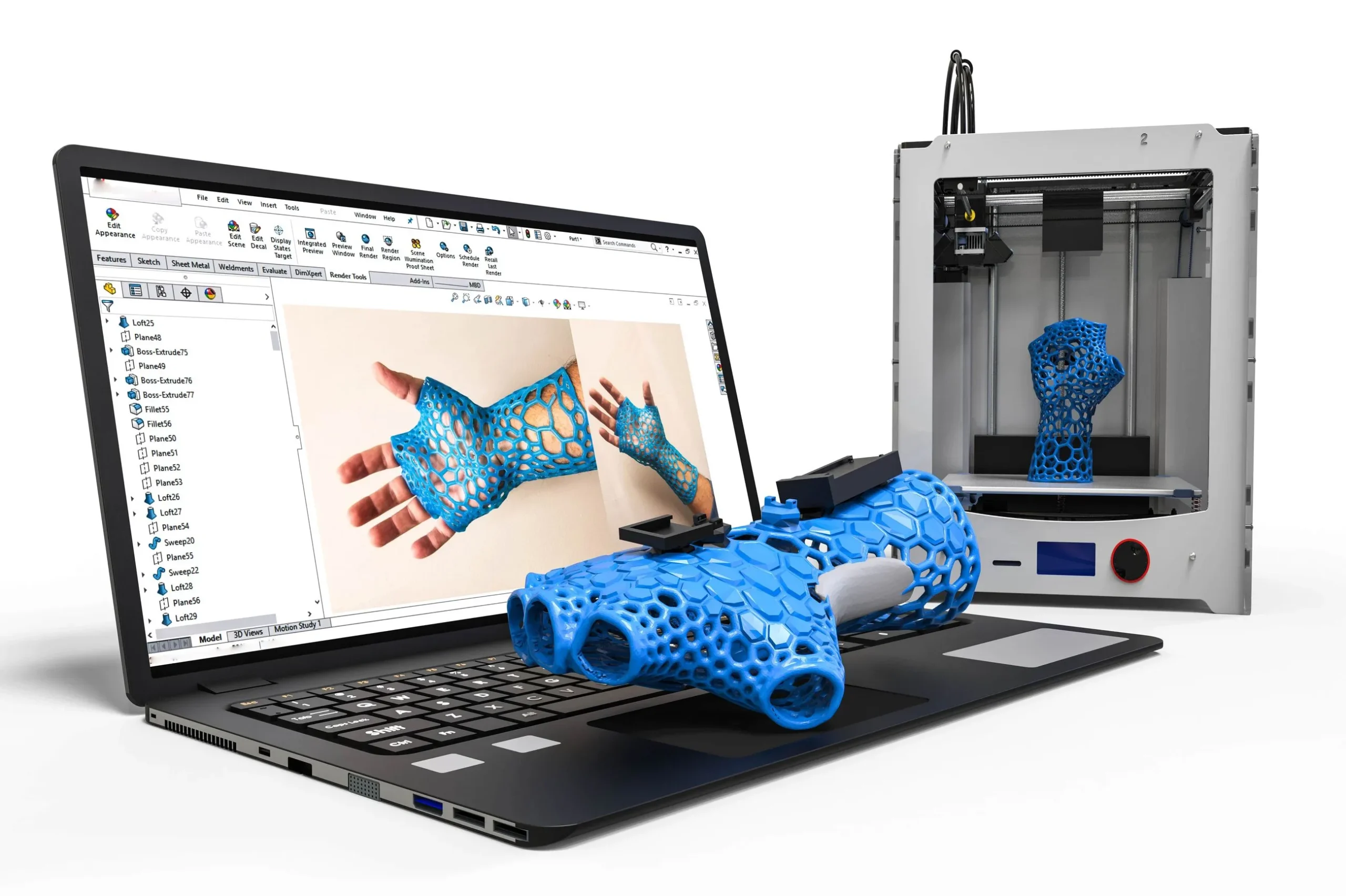
Meta Description: Learn how to download and install 3D printing software (slicers) like Ultimaker Cura and PrusaSlicer. Follow our step-by-step guide to get your 3D printer running today.
So, you’ve just unboxed your shiny new 3D printer. You have the hardware, the filament, and the enthusiasm. But before you can turn that digital 3D model into a physical object, you need one crucial bridge: 3D printing software, commonly known as a Slicer.
If you are wondering “How do I download and install 3D printing software?” or “Which slicer is best for beginners?”, you are in the right place. This guide will walk you through choosing the right software and installing it step-by-step so you can start printing immediately.
What is 3D Printing Slicer Software?
Before we hit download, it’s important to understand what this software actually does. A Slicer takes a 3D model (usually an STL file) and “slices” it into hundreds of thin horizontal layers. It then generates a file called G-code—a language your printer understands—telling it exactly where to move the nozzle and how much plastic to extrude.
Without a slicer, your 3D printer is just a machine with no instructions.
Top 3 Free 3D Printing Slicers in 2026
While there are paid options like Simplify3D, the best software for 99% of hobbyists is completely free. Here are the top three industry standards:
- Ultimaker Cura: The most popular slicer in the world. It supports almost every printer and is incredibly user-friendly for beginners.
- PrusaSlicer: Developed by Prusa Research, this is known for its reliability and advanced features. It’s a favorite among power users but still accessible for beginners.
- Orca Slicer: A newer, rapidly growing option that combines the best of PrusaSlicer with features specifically for modern high-speed printers like Bambu Lab.
How to Download and Install Ultimaker Cura
Cura is the go-to choice for most beginners because of its massive community and plugin marketplace.
Step 1: Visit the Official Website
Navigate to the official Ultimaker website. Avoid third-party download sites to ensure you get the latest, virus-free version.
Step 2: Download the Installer
Click on the “Download for free” button. You will be asked to choose your operating system (Windows, macOS, or Linux). Select your OS and the download will begin.
Step 3: Run the Installation Wizard
- Windows: Double-click the
.exefile. - Mac: Open the
.dmgfile and drag the Cura icon into your Applications folder.
Follow the on-screen prompts. You generally want to leave the default settings checked, which will install necessary drivers for communicating with your printer via USB.
Step 4: The Initial Setup Wizard
Once installed, open Cura. You will be greeted by a “Welcome” wizard.
- Add Your Printer: Cura will ask you to add a printer.
- Select Non-Networked Printer: Unless you have a high-end Ultimaker machine, select “Add a non-networked printer.”
- Find Your Brand: Scroll down to find your printer brand (e.g., Creality, Anycubic, Ender) and select your specific model.
- Finish: Click “Next” and then “Finish.”
You are now ready to drag and drop your first STL file!
How to Download and Install PrusaSlicer
If you want software that is slightly more technical but offers incredible precision, PrusaSlicer is an excellent choice.
Step 1: Go to the Prusa Drivers Page
Visit the Prusa Research Drivers page. Prusa bundles their slicer with helpful drivers and test objects.
Step 2: Download the Package
Look for the “Drivers & Apps” package for your operating system. This is often a larger file because it includes sample models and drivers, but it ensures you have everything you need.
Step 3: Install the Software
Run the installer.
- Custom Installation: During installation, you can choose to install only PrusaSlicer if you don’t want the extra test models or drivers for printers you don’t own.
- Drivers: If you own a Prusa printer, ensure the drivers for your specific model are checked.
Step 4: Configuration Wizard
Upon launching PrusaSlicer for the first time, the Configuration Wizard will pop up.
- Select Printers: Check the boxes for the printers you own. PrusaSlicer now includes profiles for many 3rd party printers (like Creality and Voron), not just Prusa machines.
- Filaments: Select “Generic PLA” and “Generic PETG” to start. You can add more specific brands later.
- Finish: Click “Finish” to load the main interface.
Troubleshooting Common Installation Issues
Even the best software can have hiccups. Here is how to fix common installation problems:
- “The app is from an unidentified developer” (Mac): Apple’s security is strict. Go to System Settings > Privacy & Security and click “Open Anyway” near the bottom to allow the installer to run.
- Graphics Driver Errors: 3D slicers require decent graphics performance to render the 3D model. If the 3D view is black or glitchy, update your computer’s graphics card drivers.
- Antivirus Blocking: Sometimes, antivirus software falsely flags slicer installers. If your download fails, pause your antivirus briefly (only if you are downloading from the official official site!).
Conclusion
Downloading and installing 3D printing software is the first step toward creative freedom. Whether you choose Cura for its ease of use or PrusaSlicer for its precision, the installation process is straightforward.
Pro Tip: Don’t stress too much about which one to pick. Both are free! Download both, slice a simple test cube in each, and see which interface you prefer.
Happy Printing!